Guide
Bracket Maker Guide
Everything the bracket editor does, in the order you will use it. By the end you will have a seeded bracket you can score, print, and share. The pictures below show the real editor interface.

Senior Sports Journalist & Match Analyst · Updated September 30, 2026
What it looks like
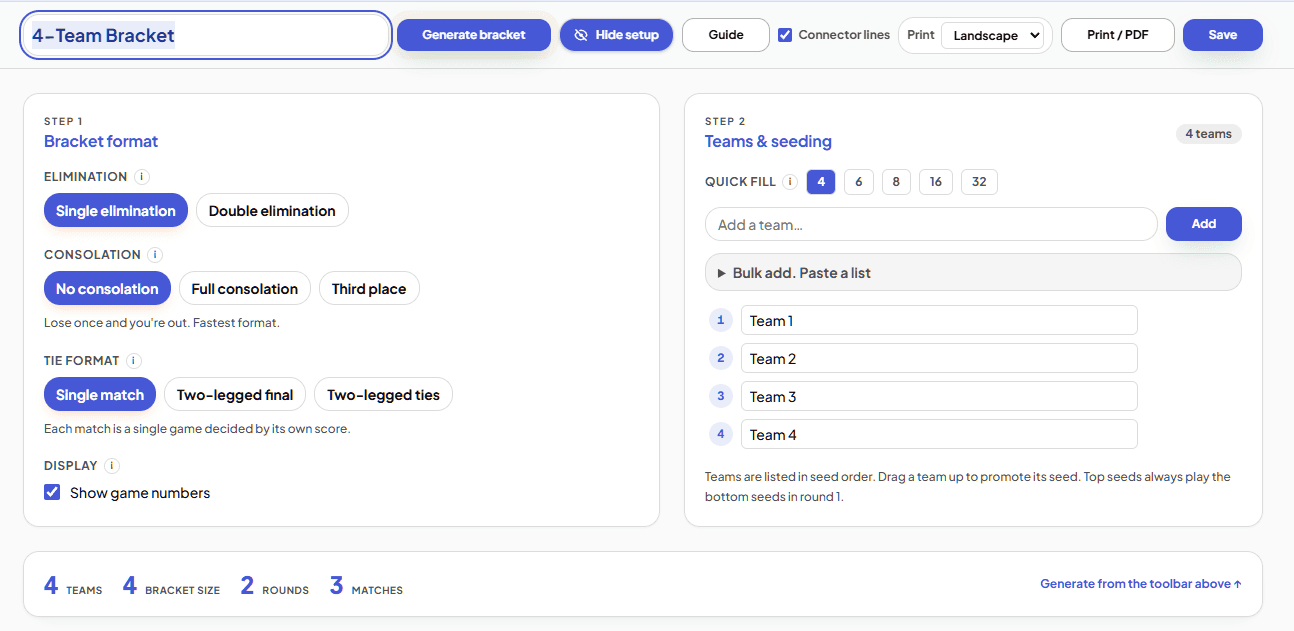
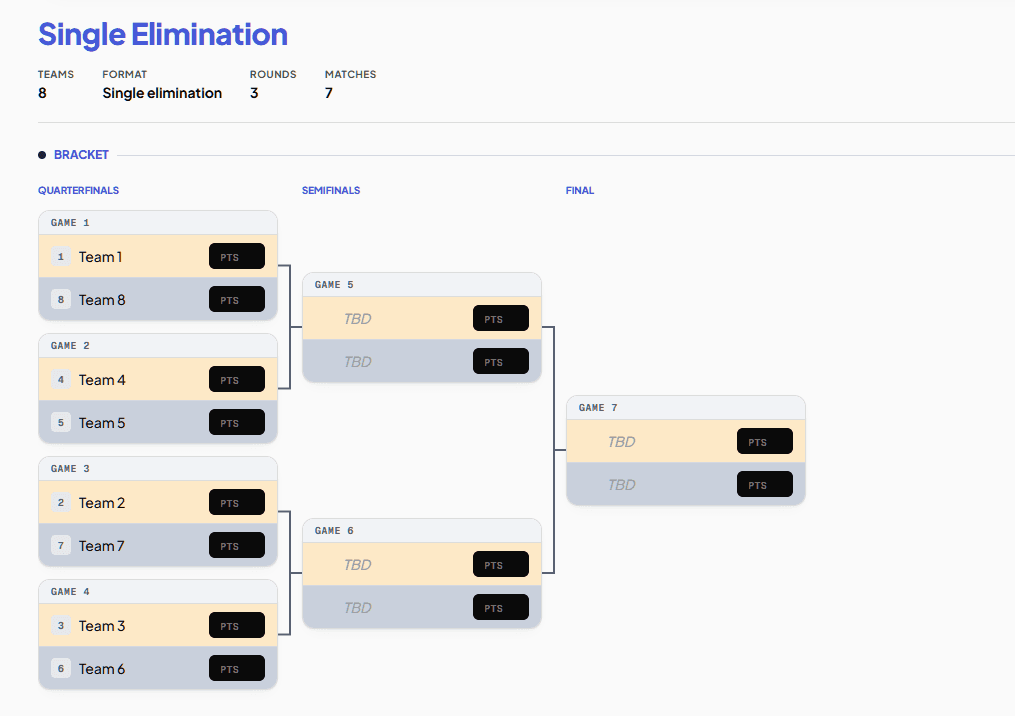
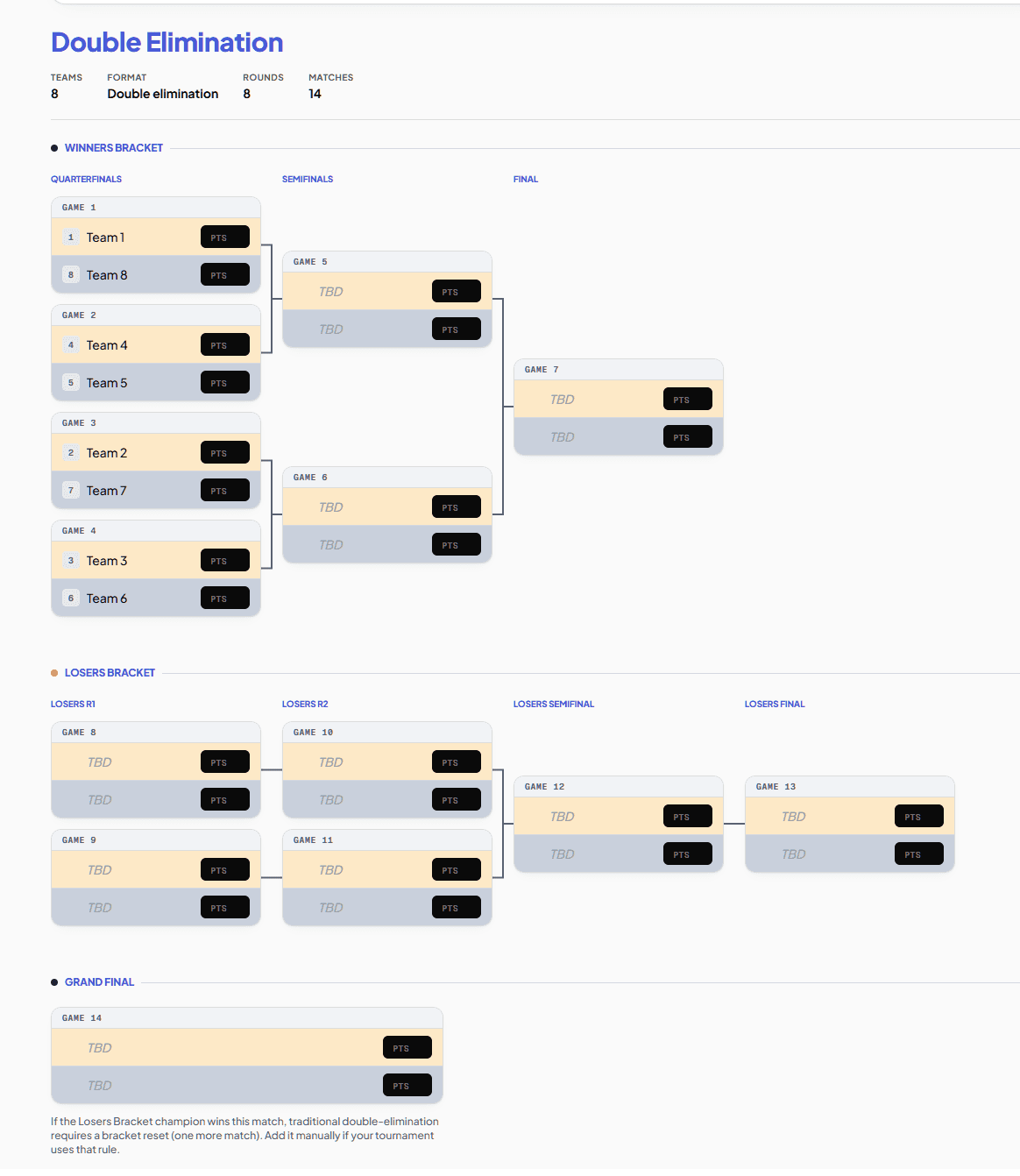
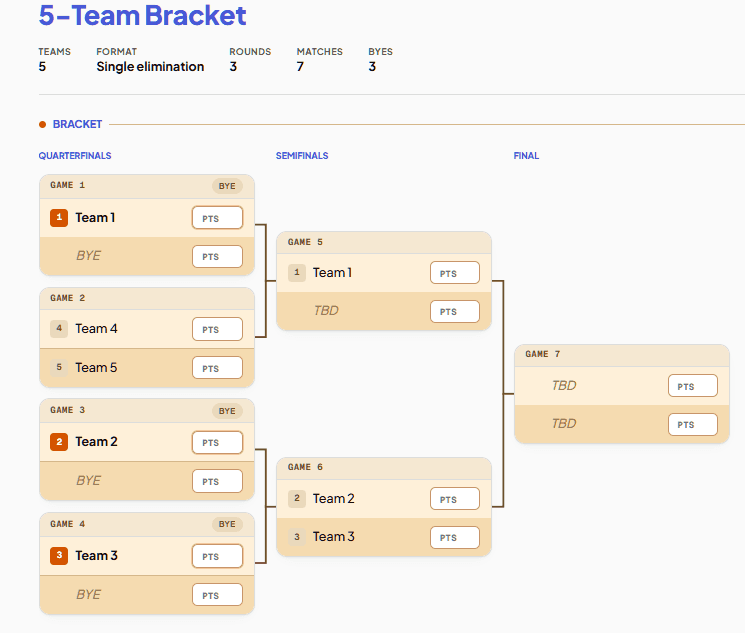
Real screenshots of the editor and the brackets it produces. The step-by-step below walks through each piece.
Open the editor
The bracket editor lives at /editor/tournament-bracket. You can also get there from the bracket hub, from any format page (single elimination, double elimination, a team-count page), or from a sports template like the NBA Playoff Bracket. Open it from a sports template and the editor starts with that event's teams already loaded.
No login needed. Building, scoring, and printing all work as a guest. Signing in only adds saving to your dashboard.
Name your bracket
The bar across the top is the toolbar. The big field on the left is the bracket title. Click it and type. The name shows on the printed sheet and on your dashboard, so "Spring Office Tournament" beats the default.
- 1Bracket title. Click and type.
- 2Hide setup collapses the setup panels once your bracket is built.
- 3Guide opens this page.
- 4Print / PDF and Save (Save needs an account).
Add your teams
Scroll to the Step 2: Teams & seeding panel. There are three ways to get teams in, and you will probably use all three.
- Quick fill. The 4 / 6 / 8 / 16 / 32 buttons drop in that many placeholder teams in one click. Best as a starting point: fill 8, then rename.
- Add one at a time. Type a name, press Enter. Good for a short list.
- Bulk add.Open "Bulk add. Paste a list" and paste names, one per line or comma-separated. Fastest for a real roster.
Step 2
Teams & seeding
- 1Sales↑ ↓ ✕
- 2Engineering↑ ↓ ✕
- 3Design↑ ↓ ✕
- 4Support↑ ↓ ✕
- 1Seed number. The list is in seed order, top to bottom.
- 2Quick fill buttons. The active size is highlighted green.
- 3Hover a row for the move-up, move-down, and remove controls.
Seeding matters. Seed 1 is paired against the lowest seed, seed 2 against the second lowest, and the top two are placed so they can only meet in the final. Put your strongest team at the top.
Choose a format
The Step 1: Bracket format panel sets the shape of the tournament. Every setting has an i icon next to it. Hover or tap the icon for a plain explanation without leaving the editor.
Step 1
Bracket format
Elimination i
Consolation i
Tie format i
Display i
Here is what each setting does.
- Elimination. Single elimination is one loss and out, the fastest format. Double elimination adds a Losers Bracket, so a team has to lose twice. It is fairer and takes about twice as many games.
- Consolation(single elimination only). "No consolation" sends losers home. "Third place" adds one match between the semifinal losers. "Full consolation" keeps every team playing, so nobody drives home after one game.
- Tie format."Single match" is one game per round. The two-legged options play matches home and away, with the aggregate score deciding the winner, for the final only or for every match.
- Display. Show game numbers prints a small number on each match, handy for calling games at a venue.
Generate the bracket
Once you have at least two teams, a stats bar appears with a Generate bracket button. The stats tell you what you are about to build before you build it: how many rounds, how many matches, and how many byes.
Change a setting after generating and a "Setup changed. Apply or keep?" banner appears. Nothing rebuilds until you click Apply, so a stray edit never wipes scores you already entered.
Pick a design
With the bracket generated, a floating toolbar appears at the bottom of the editor. The four color dots on the left are the design themes: tap one and the whole bracket re-skins instantly. There's no rebuild, no lost scores, and the design choice saves to your browser so it sticks the next time you open the editor.
- 1Classic — cardinal red on white, the default. Clean broadcast look.
- 2Scoreboard — cream + slate team rows with a floating black score box. Inspired by overhead arena boards.
- 3Hardwood — basketball-court warm wood tones. Tan rows + brown score plates.
- 4Midnight — charcoal cards with neon-blue glowing score plates. For dark-mode prints and night-game broadcasts.
Switching designs is purely visual. Connector lines, byes, seeds, scores, and the bracket structure all stay exactly the same. Find the look that fits your event and stick with it.
The same toolbar also has visibility toggles (connector lines on or off, game numbers on or off), a portrait/landscape switch for print orientation, and a quick Print button. On mobile the toolbar collapses to a tiny round button so it doesn't crowd the bracket; tap it to reopen.
Score the matches
The bracket fills the page. Each match is a card with two teams and a score box for each. Type the two scores and the winner is detected automatically, then advanced into the next round. Keep scoring and the bracket fills itself in all the way to the final.
- 1Round label and game number sit at the top of each card.
- 2Type a score into each box.
- 3The higher score wins. The winner row turns green and advances.
Two-legged ties
If you picked a two-legged tie format in Step 1, matches play home and away. The card splits into Leg 1 and Leg 2, and the winner is decided by the aggregate score across both. A tied aggregate shows a "Tied" badge until you break it.
Schedule it (optional)
Step 3 is collapsed by default, because most brackets never need it. If your event runs across multiple venues or days, click Set up schedule to open the panel. Add your venues and the weekday time slots they are free, then click Auto-schedule. The editor assigns a date, time, and venue to every match while respecting the bracket order, so a semifinal never lands before the quarterfinals that feed it. Done with it? Hide schedule collapses it again.
Step 3
Schedule
Skip this entirely if you are running the bracket back-to-back in one room. It only earns its keep for multi-venue or multi-day events.
Print or save
Two buttons in the toolbar finish the job.
- Print / PDFopens your browser print dialog. The toolbar, setup panels, and buttons drop out automatically, so only the bracket prints. Choose "Save as PDF" for a file, or send it straight to a printer for the wall.
- Save stores the bracket, scores and all, to your dashboard. It needs a free account. Reopen it any time, next round or next season.
Up to 32 teams prints cleanly on one page. For a 64-team bracket, print landscape on A3, or split it across two sheets.
What this looks like for a real league
Field notes
A Tuesday-night darts league I track runs ten teams in a single round-robin, then a knockout playoff for the top six. The round-robin used to live on a clipboard at the bar — every round, the captain spent ten minutes redoing the standings on a napkin while everyone waited for their next leg.
With the bracket maker open on a phone, the standings update the second a score goes in, the next pairings are obvious, and the playoff bracket seeds itself from the regular-season finish. The captain prints a fresh sheet at the start of each week to post by the oche, then keeps the live version on the phone for tiebreaker checks. Total time spent on bracket math that night: zero.
What changed:
- · Round-robin generated in 30 seconds instead of an hour of pairwise pencilling.
- · Standings update live — no “wait, who's on three wins?” debates at week six.
- · The playoff bracket inherited the seeding automatically, so there were no captain's-choice arguments.
- · One PDF per week, pinned to the league's WhatsApp.
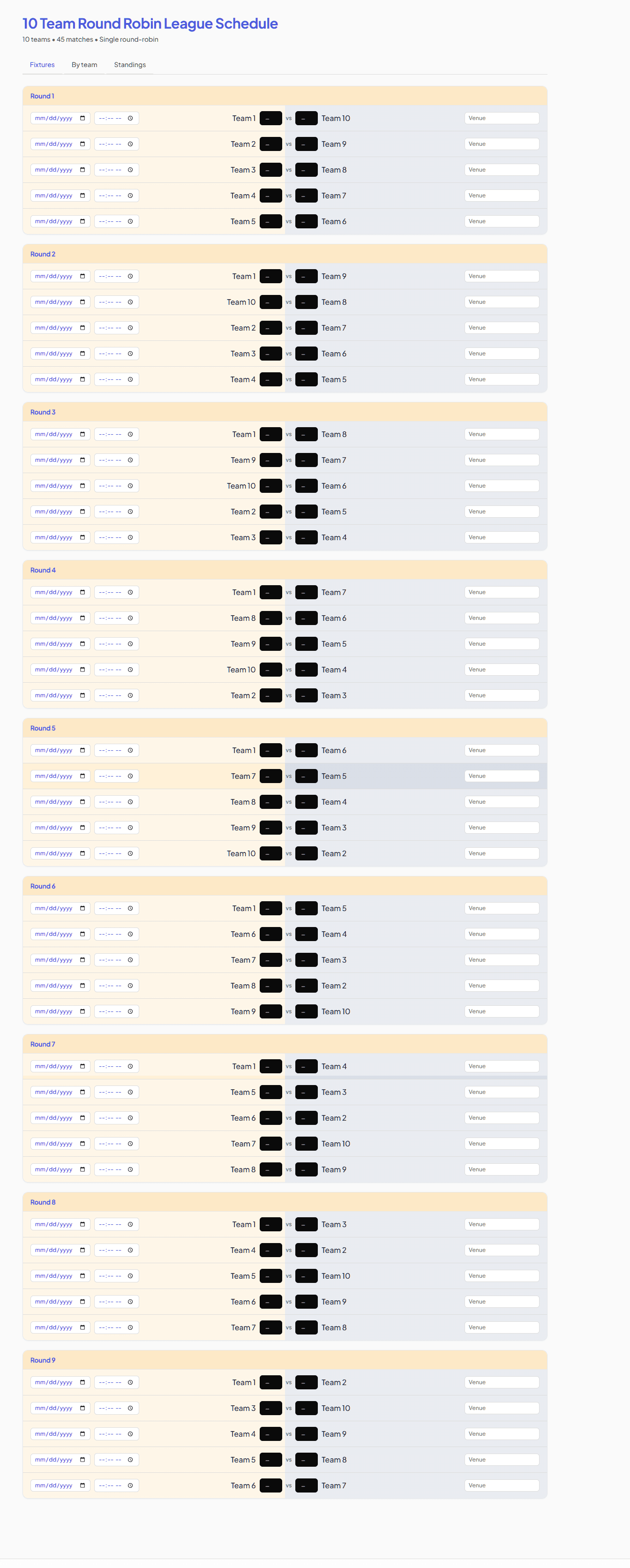
10-team round-robin as it generates — the same layout printed for the bar.
Tips and troubleshooting
Why does my bracket have byes?
A bracket needs a power-of-two number of slots: 4, 8, 16, 32, 64. When your team count lands between those, the editor rounds up and gives the top seeds a bye, which is a free pass to the next round. An 11-team bracket uses 16 slots, so the top 5 seeds sit out round 1.
I changed a setting and nothing happened.
Setup changes do not rebuild the bracket until you confirm them. A 'Setup changed. Apply or keep?' banner appears so a stray click never wipes scores you already entered. Click Apply to rebuild.
Can I use this without an account?
Yes. Building, editing, scoring, and printing all work as a guest. An account only adds one thing: saving a bracket to your dashboard so you can reopen it later.
How do I print cleanly?
Click Print / PDF in the toolbar. The setup panels, toolbar, and buttons are hidden automatically; only the bracket itself prints. Up to 32 teams fits a single page. For 64 teams, print landscape on A3 or split across two sheets.
Can I reorder teams after adding them?
Yes. Hover a team in the list and use the up and down arrows. The list is in seed order, top to bottom, so moving a team up promotes its seed.
Ready to build one?
You have read the whole editor. It takes about two minutes to put a real bracket together.
Open the bracket editor